How to get YouTube transcripts into Google Sheets
By the YouTubeTranscriptAPI engineering team. Last updated October 30, 2026.
You have 200 YouTube links in column A. You want the words in column C. Sheets has no button for that.
To get YouTube transcripts into Google Sheets, add a short Apps Script that calls a transcript API for each link and writes the text into the next cell. Our script adds a =YT_TRANSCRIPT() formula for quick lookups and a menu that fills a whole list, skips finished rows, and adds new uploads every day. Each transcript costs 1 credit, and new accounts get 100 credits free.
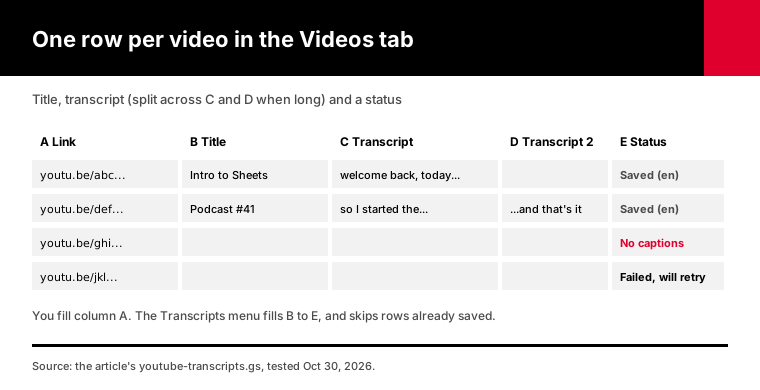
Everything below is tested code you can paste in five minutes.
How do you get YouTube transcripts into Google Sheets?
You get YouTube transcripts into Google Sheets with Apps Script, the code editor built into every sheet. The script sends each link to a transcript API with UrlFetchApp and writes back the title, the text and a status. Google lets consumer accounts make 20,000 of those fetch calls a day, which is plenty for any list a person would paste. No add-on and no outside automation tool is needed.
Here's the whole job in three parts:
1. A Videos tab with YouTube links in column A 2. One Apps Script file, pasted once 3. Your API key, saved in the script's settings
After that you get a Transcripts menu with three items: fill transcripts, add new uploads from channels, and run both every day.
There's also a formula, =YT_TRANSCRIPT(A2), for the times you want one transcript in one cell.
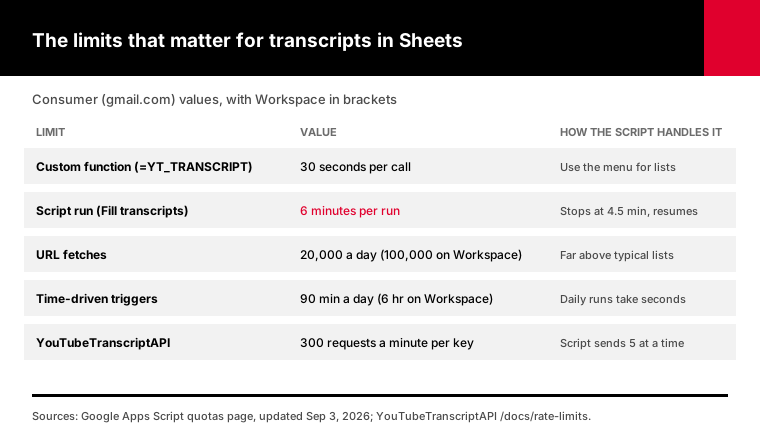
Google's Apps Script quotas page, updated September 3, 2026, sets URL Fetch at 20,000 calls a day for gmail.com accounts and 100,000 for Google Workspace accounts.
You'll hit our rate limit or your credits long before that.
Why doesn't IMPORTXML work for YouTube transcripts?
IMPORTXML doesn't work for YouTube transcripts because the transcript isn't in the page it downloads. YouTube loads captions with JavaScript after the page opens, and IMPORTXML only reads the raw HTML. The official YouTube Data API doesn't help either: its captions.download method only works on videos you have permission to edit. A transcript API that returns plain text is the route that works from a sheet.
This is usually the first thing people try. It feels like it should work.
You point IMPORTXML at the watch page, add an XPath for the transcript panel, and get an empty cell or a "could not fetch" error.
The panel you see in the browser is built after the page loads. IMPORTXML never runs that code.
Google's captions.download reference closes the other door. It needs OAuth and edit rights on the video, so it's fine for your own channel and useless for anyone else's.
Old forum answers point at an unofficial caption URL. Those break without notice, and when they break, every formula in your sheet breaks with them.
So the script calls our transcript endpoint instead. It returns the text as one string, which is the shape a cell wants.
How do you set up the Apps Script?
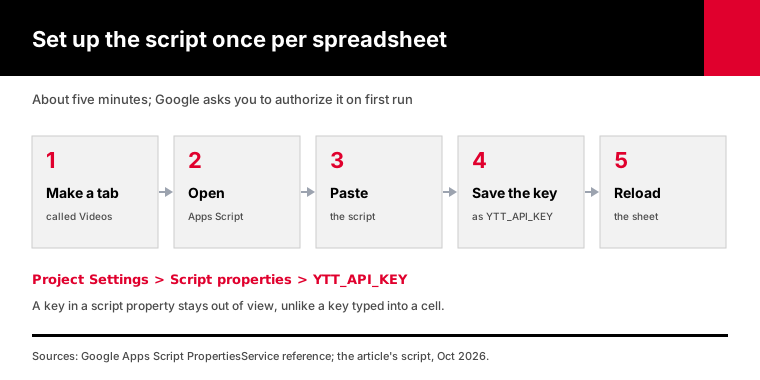
You set up the Apps Script by opening Extensions, then Apps Script, pasting the script, and saving your API key as a script property named YTT_API_KEY. Reload the sheet and a Transcripts menu appears. The first time you run a menu item, Google asks you to authorize the script, because it fetches URLs and edits the sheet. Setup takes about five minutes and needs no other tools.
Step by step:
1. Make a tab called Videos and put a header in row 1, such as "Link" 2. Open Extensions, then Apps Script 3. Delete the starter code and paste the youtube-transcripts.gs script 4. Click Project Settings, then Add script property, and add YTT_API_KEY with your key 5. Save, go back to the sheet and reload it
Why a script property and not a cell?
A key in a cell is visible to anyone the sheet is shared with. Script properties live with the script, out of view, and Google's quotas page allows 9 KB per value, far more than a key needs.
Get a key from a free account. It comes with 100 credits and no card.
The script is about 180 lines. Read it before you paste it, since it will run under your Google account.
Should you use a formula or the menu?
Use the =YT_TRANSCRIPT() formula for a handful of cells and the menu for any real list. Google's custom functions guide says each formula is a separate call to Apps Script, must finish within 30 seconds, and recalculates when its input cell changes. A list of 200 formulas means 200 live calls that can run again later. The menu writes plain values once, so a finished row never costs another credit.
The formula is handy. Type =YT_TRANSCRIPT(A2) and the transcript appears.
It's also the easiest way to spend credits by accident.
Google's custom functions guide says Sheets makes "a separate call to the Apps Script server" for each one. Change the link in A2, sort the column, or paste the formula down again, and each affected cell asks for the transcript again.
Each of those calls is a new transcript request, and each one costs a credit.
The guide also warns that custom functions called many times in one sheet are the most common cause of the "invoked too many times" error.
Side by side:
| =YT_TRANSCRIPT() formula | Transcripts menu | |
|---|---|---|
| Best for | 1 to 10 videos | Any list |
| What's in the cell | A live formula | A plain value |
| Can run again on its own | Yes, when the input changes | No, finished rows are skipped |
| Time limit | 30 seconds per cell | 6 minutes per run, then it resumes |
| Writes title and status | No | Yes |
| Long transcripts | Cut at 49,000 characters | Split across two cells |
My advice: use the formula to try the API on a few links, then switch to the menu. If you want to keep a formula's result, copy the cell and paste it as values.
How do you fill transcripts for a whole list of videos?
Choose Transcripts, then Fill transcripts. The script reads every link in column A, skips rows marked done, and fetches the rest five at a time with UrlFetchApp.fetchAll. It writes the title, the transcript and a status for each row. Apps Script stops any run after 6 minutes, so the script saves its work and stops at about 4.5 minutes. Run it again and it picks up where it stopped.
The status column is what makes this safe to run over and over.
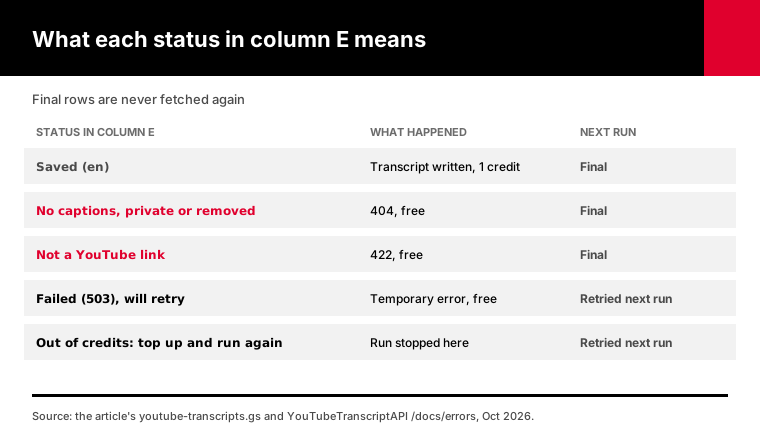
Each row ends up in one of these states:
- Saved (en), with the caption language in brackets - No captions, private or removed, from a 404, which is free - Not a YouTube link, from a 422, also free - Failed (503), will retry, picked up on the next run - Out of credits: top up and run again, where the run stopped
Saved, no-captions and bad-link rows are final. The script never fetches them again.
Failed rows and the out-of-credits row are retried next time. You don't have to clear anything.
Rate limits are handled inside the run. If our API answers 429 or 503, the script waits two seconds, then four, then eight, and tries those links again.
We tested the script on October 30, 2026 by running it in Node against mocks of the Apps Script services and the API's documented responses. With a 3-credit balance and seven links, it saved three rows, marked the fourth "Out of credits", and stopped. The next run fetched only the four rows left.
Five at a time is deliberate. Our rate limits allow 300 requests a minute per key, and a sheet doesn't need more than a handful in flight.
What happens when a transcript is longer than a cell?
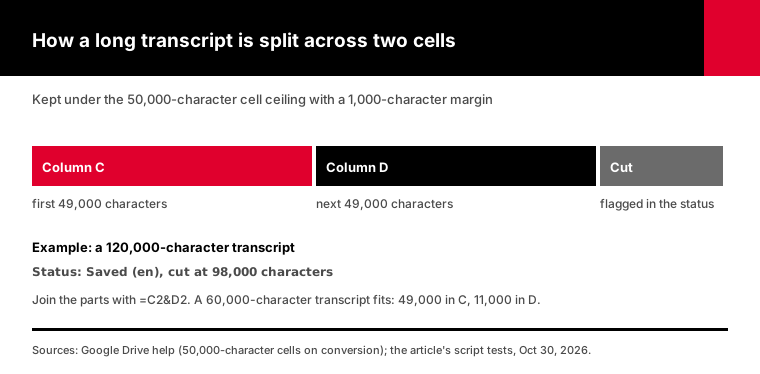
A cell can't hold a long transcript, so the script splits it. Google's Drive help page says cells with more than 50,000 characters are dropped when you convert a file to Sheets, and the script treats that as the ceiling. It writes the first 49,000 characters to column C and the next 49,000 to column D. Anything past 98,000 is cut, and the status says so.
This is the part every no-code template we read skips.
A 10-minute talk fits in one cell easily. A two-hour podcast doesn't.
Google's Drive file limits page puts a whole spreadsheet at up to 20 million cells. The one place it names a per-cell figure is the 50,000-character rule for converted files.
We keep a 1,000-character margin under that figure, so a cell never ends up on the edge.
In our test, a 60,000-character transcript came out as 49,000 characters in C and 11,000 in D, with status Saved (en). A 120,000-character one was marked Saved (en), cut at 98,000 characters.
To read a split transcript as one piece, use =C2&D2 in a spare column, or join them before you send them to an AI tool.
If most of your videos are that long, a sheet is the wrong home for the full text. Keep the title, link and a summary in Sheets, and store the transcripts as files. Our channel transcripts guide saves them as JSON Lines.
How do you search YouTube transcripts inside the sheet?
Once the transcripts are in Sheets, ordinary formulas search them, with no extra credits. FILTER with REGEXMATCH lists every video whose transcript mentions a word, and COUNTIF counts them. Join columns C and D inside the formula so long transcripts are searched in full. You end up with a searchable record of what was said in every video on your list.
To list every video that mentions pricing:
=FILTER(A2:A, REGEXMATCH(LOWER(C2:C&D2:D), "pricing"))To count how many of them do:
=COUNTIF(C2:C, "*pricing*")REGEXMATCH takes a pattern, so "pricing|cost|plan" finds any of the three words in one pass. The result is an ordinary range, so you can sort it or paste it anywhere.
This is where a sheet beats a folder of text files. Your marketing team can check "which of our webinars mention the new feature?" without asking anyone to run code.
COUNTIF only looks at column C, so it misses mentions in the second half of a split transcript. For an exact count on long videos, use =SUMPRODUCT(--REGEXMATCH(LOWER(C2:C&D2:D), "pricing")) instead.
Want the moment, not just the video? Fill the column with timestamps instead. Change include_timestamp to true in the script, and each line starts with the second it was said, like [754.2s].
How do you add new uploads to the sheet automatically?
Add a Channels tab with @handles in column A, then choose Transcripts, then Run both every day. Each morning the script checks every channel's latest 15 uploads, appends the new ones to Videos, and fills their transcripts. Checking for new uploads is free, so you only pay 1 credit per new video. A channel posting three videos a week adds roughly 13 credits to your monthly bill.
The trigger runs a function called daily, which calls two others in order: add new uploads, then fill transcripts.
The new-uploads step uses our latest-uploads endpoint, which returns a channel's 15 newest videos at no cost. The script adds only videos it hasn't seen, so running it twice adds nothing.
Google's installable triggers guide says a daily trigger fires at a time inside the hour you pick, 7am in our script, and keeps that time from day to day.
Watch one quota here. Google's quotas page gives time-driven triggers 90 minutes of total run time a day on gmail.com accounts and 6 hours on Workspace.
A daily run that fills a few new transcripts takes seconds, so you won't come close. It only matters if you schedule big backfills every hour.
To stop it, open the Apps Script editor, click Triggers in the left sidebar and delete the daily trigger.
Which way to get YouTube transcripts into Sheets should you pick?
Pick Apps Script if you want everything inside the sheet with nothing else to run. Pick an n8n or Make workflow if your sheet is one step in a bigger automation, such as sending summaries to Slack. Browser extensions work for one video at a time. Every route needs a transcript source, because neither Sheets nor YouTube's Data API returns other people's captions.
The common routes, side by side:
| Route | Runs where | Works on a list | Extra accounts | Scheduled refresh |
|---|---|---|---|---|
| This Apps Script | Inside the sheet | Yes | None | Yes, daily trigger |
| n8n or Make workflow | An automation server | Yes | n8n or Make | Yes |
| Apify actor in a workflow | Apify's servers | Yes | Apify, plus n8n | Depends on the workflow |
| Browser extension | Your browser | One video at a time | The extension | No |
| IMPORTXML | Inside the sheet | No | None | Doesn't return transcripts |
The n8n templates we read are good at moving data between apps. One published n8n template, built on an Apify actor, says plainly that "rerunning a successful URL adds another row," so a second run duplicates your data.
Use a workflow tool when transcripts are one step in a pipeline that touches many apps. Use the script when the sheet is the whole point.
If you already run n8n, our n8n templates use the same API.
Frequently asked questions
How do I get a YouTube transcript into Google Sheets?
Add an Apps Script that calls a transcript API. Open Extensions, then Apps Script, paste the script from this guide, and save your API key as a script property. Then type =YT_TRANSCRIPT(A2) next to a link, or use the Transcripts menu to fill a whole column. Each transcript costs 1 credit, and new accounts get 100 credits free.
Can IMPORTXML pull a YouTube transcript?
No. IMPORTXML reads the raw HTML of a page, and YouTube loads its transcript panel with JavaScript after the page opens, so the text never reaches IMPORTXML. The official YouTube Data API only returns captions for videos you can edit. An Apps Script that calls a transcript API is the reliable way to get the text into a cell.
Is there a Google Sheets formula for YouTube transcripts?
Not built in, but a custom function adds one. The script in this guide defines =YT_TRANSCRIPT(), which returns a video's transcript as plain text. Google limits custom functions to 30 seconds each and recalculates them when their input changes, so use the formula for a few videos and the script's menu for longer lists.
Why is my YouTube transcript cut off in Google Sheets?
Long transcripts run past what one cell should hold. Google's Drive help says cells over 50,000 characters are removed when files are converted to Sheets, so the script writes up to 49,000 characters in one column and the next 49,000 in the column beside it. Join them with =C2&D2 when you need the full text.
Can Google Sheets add new YouTube videos automatically?
Yes, with a time-driven trigger. List channel @handles in a Channels tab and choose Run both every day. Each morning the script checks each channel's 15 newest uploads for free, adds the new ones to your list and fills their transcripts for 1 credit each. Delete the trigger in the Apps Script editor to stop it.
How much does it cost to put YouTube transcripts in Google Sheets?
Apps Script itself is free within Google's quotas, which allow 20,000 URL fetches a day on a personal account. The transcripts cost 1 credit each through YouTubeTranscriptAPI, and videos without captions are free. New accounts get 100 credits free. Past that, 1,000 credits cost $7 a month on the Monthly plan.
Fill your first column today
Create a free account, paste the script into a sheet with ten links in column A, and choose Transcripts, then Fill transcripts. You'll see ten rows of text and a status column in under a minute, for 10 credits. See the pricing page when you're ready for bigger lists.
About the authors: the YouTubeTranscriptAPI engineering team builds and runs the hosted transcript API used in this guide. The Apps Script here is the one we test against the API's documented responses.